Technology has become part of almost every aspect of modern life. A smartphone can serve as a telephone, camera, map, calendar, messaging device, entertainment center, and gateway to online services. Wi-Fi connects computers, tablets, televisions, and smart devices. Video calls allow families to see one another even when they live far apart. Applications can help people manage appointments, read the news, organize photographs, communicate with friends, and perform countless everyday tasks.
For people who did not grow up with smartphones and constant internet connectivity, this transformation can sometimes feel overwhelming.
The challenge is not necessarily a lack of ability. Technology simply has its own vocabulary, procedures, menus, settings, and habits that need to be learned.
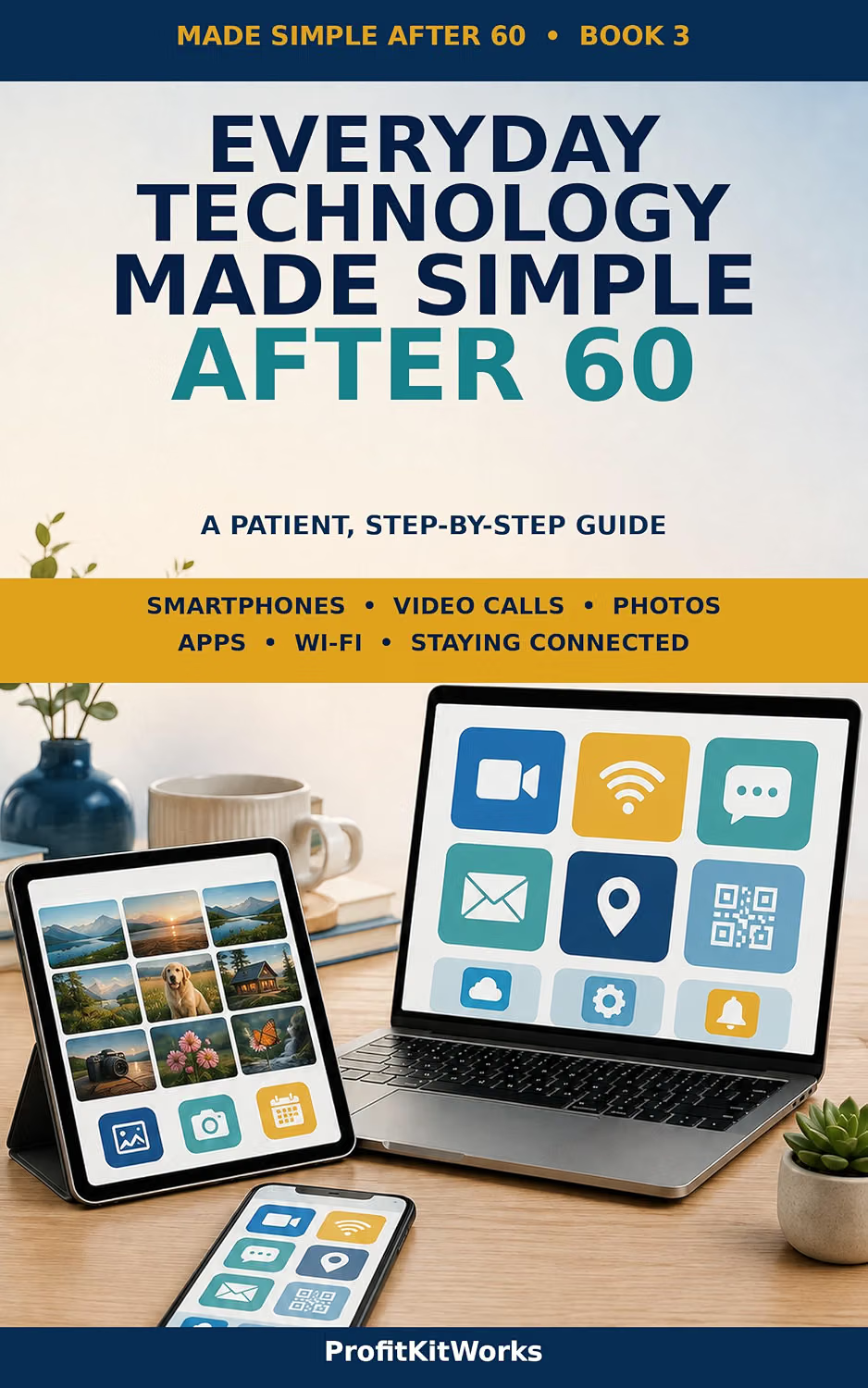
Everyday Technology Made Simple After 60: A Patient, Step-by-Step Guide to Smartphones, Video Calls, Photos, Apps, Wi-Fi and Staying Connected is presented as a practical technology guide for older adults who want to become more comfortable with everyday digital tools.
The focus is on common tasks rather than highly technical subjects. Instead of requiring readers to understand how computer networks work internally, the emphasis is on practical activities such as connecting to Wi-Fi, making video calls, managing photographs, using applications, and staying connected.
That makes digital learning more approachable.
A person does not need to understand every feature of a smartphone to use one effectively. In many cases, learning a small group of useful functions can provide a strong foundation.
The same principle applies to computers, tablets, and other connected devices.
Why Everyday Technology Can Feel Complicated
Modern devices often combine many functions into a single product.
A smartphone may contain hundreds of settings and applications. A simple-looking notification can lead to another application, website, account, or security prompt.
For an experienced user, these interactions can seem routine.
For someone learning technology later in life, they can create uncertainty.
Questions naturally arise:
What does this icon mean?
Why is the phone asking for permission?
Where did my photograph go?
Why is the internet not working?
How do I install an application?
How do I make a video call?
What happens if I press the wrong button?
These are normal questions.
Digital skills are learned through practice, and making an occasional mistake is part of the process.
A patient, step-by-step approach can make learning less stressful because each task is broken into manageable actions.
Key Features and Learning Areas
Smartphone Basics
The smartphone is often the most important starting point.
A modern smartphone can perform many functions, but beginners usually need only a few essential controls at first.
These include:
- Turning the device on and off
- Locking and unlocking the screen
- Adjusting volume
- Charging the battery
- Making and receiving calls
- Sending messages
- Opening applications
- Returning to the home screen
- Adjusting basic settings
- Connecting to Wi-Fi
Once these actions become familiar, other features become easier to learn.
A good learning strategy is to avoid trying to memorize everything.
Instead, practice one function repeatedly until it feels comfortable.
Understanding the Home Screen
The home screen is effectively the starting point for many smartphone tasks.
It may contain application icons, widgets, folders, and shortcuts.
For beginners, it is useful to identify the applications that matter most.
A simple arrangement might place frequently used applications where they are easy to find.
For example:
- Phone
- Messages
- Camera
- Photos
- Contacts
- Calendar
- Maps
- Weather
Less frequently used applications can remain elsewhere.
The goal is not to create the most sophisticated layout.
The goal is to make the phone easier to understand.
Making and Receiving Calls
Although smartphones are capable of much more than telephone calls, communication remains one of their fundamental purposes.
Learning the calling interface provides an important foundation.
Users should become familiar with:
- Contacts
- Recent calls
- Incoming calls
- Speaker mode
- Volume controls
- Ending calls
- Blocking unwanted callers
Saving important contacts can make communication easier.
Instead of remembering a telephone number, the user can usually select a person’s name from the contacts list.
Sending Text Messages
Text messaging is another essential skill.
A beginner can start by sending short messages to someone they already know.
The basic process typically involves opening the messaging application, selecting a contact, typing the message, and sending it.
Once comfortable, users can explore additional functions such as photographs, voice messages, emojis, or group conversations.
There is no need to learn every messaging feature immediately.
Video Calls
Video calling has changed the way families communicate.
A voice call allows people to hear each other.
A video call adds a visual connection.
For families separated by distance, this can make regular communication feel more personal.
Video calling applications may include different features and interfaces, but the general concepts are similar.
Users may need to:
- Open the appropriate application.
- Select a contact.
- Start a video call.
- Allow camera and microphone access when necessary.
- Adjust the volume.
- End the call.
Before making the first important video call, it can be useful to conduct a short practice call with a trusted person.
That allows the user to become familiar with the camera, microphone, and controls without pressure.
Understanding Wi-Fi
Wi-Fi is one of the most important concepts for smartphone and tablet users.
It allows compatible devices to connect to a local wireless network and access the internet.
A home Wi-Fi network typically uses a router to provide wireless connectivity.
When connecting a phone or tablet, users usually select their network name and enter the appropriate password.
Why Wi-Fi Matters
Wi-Fi can provide internet connectivity for:
- Smartphones
- Tablets
- Computers
- Smart televisions
- Streaming devices
- Printers
- Smart home products
Understanding the difference between Wi-Fi and mobile data is useful.
Wi-Fi connects a device to a wireless local network.
Mobile data uses a cellular network provided by a mobile carrier.
A smartphone can often use either one depending on availability and settings.
Common Wi-Fi Problems
If a device cannot connect, there are several possibilities.
The Wi-Fi network may be unavailable.
The password may have been entered incorrectly.
The router may need attention.
The device may have a temporary connection problem.
The internet service itself may be experiencing an outage.
A simple troubleshooting approach is to check whether other devices can connect.
If nothing can connect, the issue may involve the network or internet service rather than the smartphone itself.
If other devices work normally, restarting or reconnecting the affected device may help.
Managing Photographs
Modern smartphones can store thousands of photographs.
That creates convenience but can also create organizational problems.
A user may eventually wonder:
Where are my photographs?
How do I delete duplicates?
How do I send a photograph to my family?
How do I back up important pictures?
How do I find a photograph from several months ago?
Learning the basics of photo management can make a smartphone significantly more useful.
Taking Photographs
The camera application is usually easy to access, but beginners can still benefit from learning the basic controls.
Practice taking photographs in different lighting conditions.
Experiment with portrait and landscape orientation.
Learn how to review a photograph immediately after taking it.
Most importantly, understand where the photograph is stored.
Sharing Photographs
Sharing photographs can be one of the most enjoyable smartphone activities.
A user may send a photograph through messaging, email, or another supported service.
Before sharing, it is worth checking that the intended recipient is selected.
This is particularly important when photographs contain personal or private information.
Organizing Photographs
Creating albums can make large photo collections easier to manage.
Useful categories might include:
- Family
- Holidays
- Pets
- Special events
- Documents
- Nature
- Important memories
Different photo applications offer different organization tools.
Some may also automatically group images by people, locations, or dates.
Users should review privacy settings when using cloud-based photo services.
Applications and App Stores
Applications, commonly called apps, are programs designed to perform specific tasks.
A smartphone may include applications for communication, navigation, entertainment, finance, shopping, news, health, photography, and productivity.
The variety can be useful, but it can also be confusing.
Installing an Application
Applications should normally be installed through the official app store associated with the device.
Before installing an application, consider:
- Who developed it
- What permissions it requests
- Whether the application is actually necessary
- Whether there are signs of suspicious behavior
- Whether the developer information is trustworthy
Avoid installing applications from unexpected links sent by strangers.
Understanding Permissions
An application may ask for access to the camera, microphone, location, contacts, photographs, or other information.
The request should make sense in relation to what the application does.
For example, a video-calling application may reasonably require microphone and camera access.
A simple flashlight application requesting extensive access to personal information deserves more scrutiny.
Users can often review permissions later through the device’s settings.
Staying Connected in the Digital Age
Technology can help people maintain relationships in ways that were difficult or impossible in earlier decades.
Family members may live in different cities or countries.
Friends may move away.
Travel can make regular face-to-face contact difficult.
Digital communication provides additional ways to stay in touch.
These can include:
- Telephone calls
- Text messages
- Video calls
- Social media
- Shared photographs
- Online groups
The value is not in the technology itself.
It is in what the technology allows people to do.
A simple weekly video call with family may be more meaningful than learning dozens of advanced smartphone functions.
How the Guide Can Be Used
As a Step-by-Step Learning Companion
A practical guide can be used alongside a smartphone, tablet, or computer.
Rather than reading the entire book first, a learner can choose one task and practice it.
For example:
“Today I will learn how to connect my phone to Wi-Fi.”
Once that task is complete, the next session might focus on sending a photograph.
This approach allows progress to happen naturally.
As a Reference Book
Technology questions often appear at inconvenient times.
A user may suddenly forget how to change a setting or share a photograph.
A reference-oriented guide can provide a place to return to when a specific question arises.
This can be particularly useful for people who do not use certain functions frequently.
With a Family Member
A family member can work through technology tasks together with a senior.
The learner can perform the steps while the helper provides guidance.
This is generally more educational than the helper simply taking control of the device.
The objective is to build independence.
For Regular Practice
Digital skills improve through repetition.
A short weekly practice session can be enough to maintain familiarity.
For example:
Week one: calling and contacts.
Week two: text messages.
Week three: photographs.
Week four: video calls.
Week five: Wi-Fi.
Week six: applications.
This kind of gradual progression can make the learning process more manageable.
Who May Find This Guide Useful?
Adults Over 60 Learning Modern Devices
The book is specifically positioned toward adults over 60.
Its emphasis on patience and step-by-step instructions can make it suitable for readers who prefer learning technology gradually.
First-Time Smartphone Users
Someone who has recently moved from a traditional mobile phone to a smartphone may need help understanding applications, touch controls, Wi-Fi, photographs, and other features.
A structured introduction can provide a useful starting point.
People Returning to Technology
Some adults may have used computers years ago but feel less comfortable with today’s smartphones and applications.
The underlying concepts remain familiar in some cases, but interfaces and terminology have changed considerably.
A practical guide can help bridge that gap.
Family Members Helping Older Relatives
Children, grandchildren, friends, and caregivers often help older adults learn digital technology.
A dedicated guide can provide common vocabulary and a structured learning framework.
People Who Want to Stay Connected
For someone whose family and friends live far away, learning video calls, messaging, email, and photograph sharing can be particularly relevant.
The technology becomes a means of maintaining relationships.
Important Things to Consider
Android and iPhone Instructions Can Differ
One of the most important considerations is that smartphones do not all use the same operating system.
Android phones can differ from iPhones, and even two Android devices may use different interfaces depending on the manufacturer and software version.
As a result, an instruction may not look exactly the same on every device.
This does not necessarily indicate a problem.
Users should compare general instructions with the specific device they own.
Software Changes Over Time
Applications and operating systems receive updates.
Buttons move.
Menus change.
New features appear.
Older functions may be redesigned.
Therefore, a printed guide should be treated as a learning resource rather than a permanent replacement for current official documentation.
When exact instructions no longer match the screen, checking the manufacturer’s current support information is sensible.
Avoiding Scams
Digital literacy should include online safety.
Older adults can be targeted by phishing messages, fake technical-support calls, fraudulent websites, impersonation attempts, and other scams.
Some warning signs include:
- Unusual urgency
- Requests for passwords
- Requests for verification codes
- Unexpected payment demands
- Suspicious links
- Messages claiming that an account will immediately be closed
- Requests to install unfamiliar software
When something feels unusual, stop before taking action.
Contact the supposed organization using a trusted telephone number or official website rather than using contact information supplied in a suspicious message.
Password Security
Every online account should receive appropriate protection.
Using unique passwords is preferable to reusing one password everywhere.
Multi-factor authentication can provide an additional layer of account security where available.
Password managers can also help users maintain unique credentials without memorizing every password individually.
Privacy
Technology can collect information about users.
Depending on the application and service, this may include location, photographs, contacts, activity, or other information.
Users should review privacy settings and understand what information an application needs.
Convenience should not automatically mean granting every permission.
Digital Accessibility
Accessibility features deserve special attention.
Modern devices can offer tools that make screens and controls easier to use.
Depending on the device, options may include:
- Larger text
- Magnification
- Increased contrast
- Screen readers
- Voice control
- Captions
- Hearing-related settings
- Reduced motion
- Larger interface elements
A user who struggles with small text should not assume that the only solution is buying another device.
The existing device may already contain settings that can make it easier to operate.
Making Smartphones Less Overwhelming
A smartphone can become easier to use when unnecessary complexity is reduced.
Start by identifying the applications used most frequently.
Move them into convenient locations.
Disable notifications that are not important.
Remove applications that are no longer needed.
Increase text size if necessary.
Choose a clear wallpaper and readable display configuration.
Organize contacts.
Save important numbers.
These small changes can make a significant difference to everyday usability.
Using Technology for Everyday Organization
Smartphones can support many simple organizational tasks.
Calendar
A digital calendar can help track appointments, birthdays, meetings, and personal events.
Users can set reminders so they do not need to remember every date manually.
Notes
A notes application can store:
- Shopping lists
- Questions
- Ideas
- Addresses
- Household information
- Personal reminders
Important or sensitive information should be protected appropriately.
Maps
Digital maps can provide directions and location information.
Users should verify important travel information because routes, road conditions, public transportation schedules, and opening hours can change.
Weather
Weather applications can provide forecasts and alerts.
Again, users should remember that forecasts can change and that severe-weather warnings should be taken seriously through authoritative local sources.
Using Video Calls With Confidence
Video calls can initially feel unusual.
The camera shows the user’s face.
The microphone can pick up background noise.
The screen may display several controls.
A little preparation can help.
Before the call:
- Charge the device.
- Check the internet connection.
- Make sure the camera is unobstructed.
- Check the microphone.
- Find a reasonably quiet location.
- Position the device securely.
During the call:
- Speak clearly.
- Look toward the camera when appropriate.
- Use the mute button if background noise becomes distracting.
- Ask the other person for help if something unexpected appears.
There is no need to understand every button.
Most video calls can be handled with a few basic controls.
Learning Through Real-Life Tasks
One of the strongest ways to develop digital confidence is to connect learning with genuine needs.
Instead of practicing an artificial task, choose something useful.
For example:
“I want to send my daughter a photograph.”
That single goal can teach the user how to open the camera, take a photograph, open the photo library, select an image, choose the sharing option, select a contact, and send the image.
A single real-world objective can therefore teach several related skills.
The same principle works for video calls.
“I want to see my grandchildren this weekend.”
That goal can motivate the user to learn the necessary application, contact selection, camera, microphone, volume, and call controls.
Comparison of General Technology Guide Categories
Different types of technology resources serve different learning needs.
| Guide Category | Main Focus | Typical Audience |
|---|---|---|
| Smartphone basics | Calls, messages, settings and apps | New smartphone users |
| Computer basics | Files, browsers and software | Computer beginners |
| Internet safety | Scams, passwords and privacy | General internet users |
| Video calling guide | Online conversations | People learning remote communication |
| Photo management guide | Taking, storing and sharing images | Smartphone photographers |
| Senior technology guide | Everyday digital tasks | Older adults and beginners |
A broad guide covering several everyday subjects can be useful when a learner wants to build general confidence rather than master one specific technology.
Someone who already understands smartphones but needs advanced assistance with photo editing, for example, may benefit from a specialized resource.
The right approach depends on the user’s current skill level.
Helping Seniors Learn Technology More Effectively
Teaching style can be just as important as the instructions themselves.
A common mistake is moving too quickly.
An experienced technology user may perform several actions automatically.
A beginner may need to understand each step individually.
A more patient learning process might involve:
- Explain what the task is.
- Demonstrate one step.
- Let the learner repeat it.
- Explain unfamiliar terminology.
- Repeat the process.
- Let the learner try without assistance.
- Practice again later.
The goal is not simply completing the task.
The goal is enabling the learner to complete it independently next time.
Building a Personal Technology Checklist
After learning the basics, a senior can create a personal checklist of essential digital skills.
For example:
Communication
- Make a telephone call
- Answer a call
- Send a text
- Start a video call
- Add a contact
Smartphone
- Unlock the phone
- Adjust volume
- Charge the device
- Connect to Wi-Fi
- Install an application
Photos
- Take a photograph
- Find photographs
- Delete unwanted images
- Share a photograph
- Understand basic backup options
Safety
- Recognize suspicious messages
- Avoid sharing verification codes
- Use secure passwords
- Enable available security protections
- Contact a trusted person when uncertain
This checklist can become a personal reference.
Frequently Asked Questions
Is Everyday Technology Made Simple After 60 only for people who have never used a computer?
No. The guide is positioned toward adults over 60, including beginners who may need practical help with modern smartphones, applications, Wi-Fi, photographs, video calls, and digital communication.
Does someone need technical knowledge to learn these skills?
No. Basic smartphone and internet skills can be learned without understanding programming or computer engineering.
Can the guide help with smartphones?
Yes. Smartphones are one of the main subjects identified in the title, alongside applications, photographs, Wi-Fi, video calls, and staying connected.
Can seniors learn video calling?
Yes. Video-calling applications are designed for general consumers, although the exact steps differ between services.
A short practice call can make the process more familiar.
What is Wi-Fi?
Wi-Fi is a wireless networking technology that allows compatible devices to connect to a local network. A home Wi-Fi network commonly provides access to the internet through a router.
Is Wi-Fi the same as mobile data?
No. Wi-Fi normally connects through a local wireless network, while mobile data uses a cellular network provided by a carrier.
How can I organize photographs on my smartphone?
You can generally use albums, folders, dates, or other organizational tools provided by the phone’s photo application. The exact options depend on the device and software.
Are all smartphone instructions the same?
No. Android and iPhone devices have different interfaces, and manufacturers can customize Android interfaces as well.
What should I do if my screen does not match an instruction?
Check the device model and software version. The application or operating system may have been updated, or your device may use a different interface.
Can I learn smartphone skills one at a time?
Yes. In fact, focusing on one practical task at a time can make learning less overwhelming.
How can I stay safe from online scams?
Be cautious with unexpected messages, suspicious links, urgent requests, and requests for passwords or verification codes. When uncertain, independently contact the organization or person involved.
Should I install every application that looks useful?
No. Install applications based on genuine needs and use reputable application stores. Review the developer information and permissions before installation.
Why do applications ask for permissions?
Applications may need access to certain device functions to provide specific features. Users should consider whether each requested permission makes sense for the application’s purpose.
Can smartphones help with everyday organization?
Yes. Calendar applications, reminders, notes, maps, alarms, contacts, and other built-in tools can help organize daily activities.
Can I use a smartphone without learning every feature?
Absolutely. A smartphone contains many functions, but users only need to learn the ones relevant to their daily lives.
What if I make a mistake while using my phone?
Many smartphone actions can be reversed or corrected. When uncertain, stop and look at the screen before continuing. For important actions, ask a trusted person for assistance.
Can a family member help me learn?
Yes. Family members can be useful learning partners, particularly when they allow the learner to perform the task rather than doing everything themselves.
Is a technology guide a replacement for official support?
No. A general guide can explain concepts and common procedures, while official manufacturer and service documentation should be used for current, device-specific information.
Conclusion
Technology can sometimes seem intimidating because today’s devices combine many different functions into one small package.
A smartphone can be a telephone, camera, messaging system, navigation tool, calendar, internet browser, entertainment device, and connection to countless online services.
For someone learning these technologies after 60, there is no reason to master everything at once.
The most practical approach is to begin with everyday needs.
Learn how to make a call.
Then send a message.
Take a photograph.
Share it with family.
Connect to Wi-Fi.
Make a video call.
Install an application.
Adjust the settings that make the device easier to read.
Gradually, these individual skills begin to connect.
Everyday Technology Made Simple After 60: A Patient, Step-by-Step Guide to Smartphones, Video Calls, Photos, Apps, Wi-Fi and Staying Connected focuses on this practical approach to digital learning. Its subjects reflect many of the technologies that older adults encounter in everyday life, from smartphone basics and applications to photographs, wireless internet, video communication, and staying connected with others.
The most important goal is not technical expertise.
It is confidence.
A person who knows how to stop, read what is on the screen, ask questions, and complete a few essential tasks independently already has a strong foundation for navigating the digital world.
At the same time, confidence should be accompanied by caution. Online scams, suspicious links, privacy concerns, weak passwords, and misleading digital information remain important considerations.
Learning technology therefore involves two complementary skills: knowing how to use digital tools and knowing when to pause and verify something.
With patience and regular practice, smartphones and connected devices can become much less intimidating.
One small task can lead to another, and each successful experience can make the next one easier.
For adults who want a practical introduction to everyday technology and a structured way to build digital confidence, this guide provides a starting point for exploring the devices and services that help people communicate, organize their lives, manage photographs, and stay connected.
Leave a Reply