Smartphones have become an everyday tool for communication, information, organization, photography, entertainment, navigation, and much more. Yet the same device that can perform dozens of useful tasks can also feel confusing when a person is not familiar with its menus, icons, applications, settings, and constantly changing software.
For seniors who want to become more comfortable with their phones, the challenge is often not the technology itself. It is knowing where to begin.
A modern smartphone can display notifications, manage contacts, connect to Wi-Fi, take photographs, make video calls, install applications, store documents, provide directions, and offer access to online services. Learning all of those capabilities simultaneously can make the experience unnecessarily complicated.
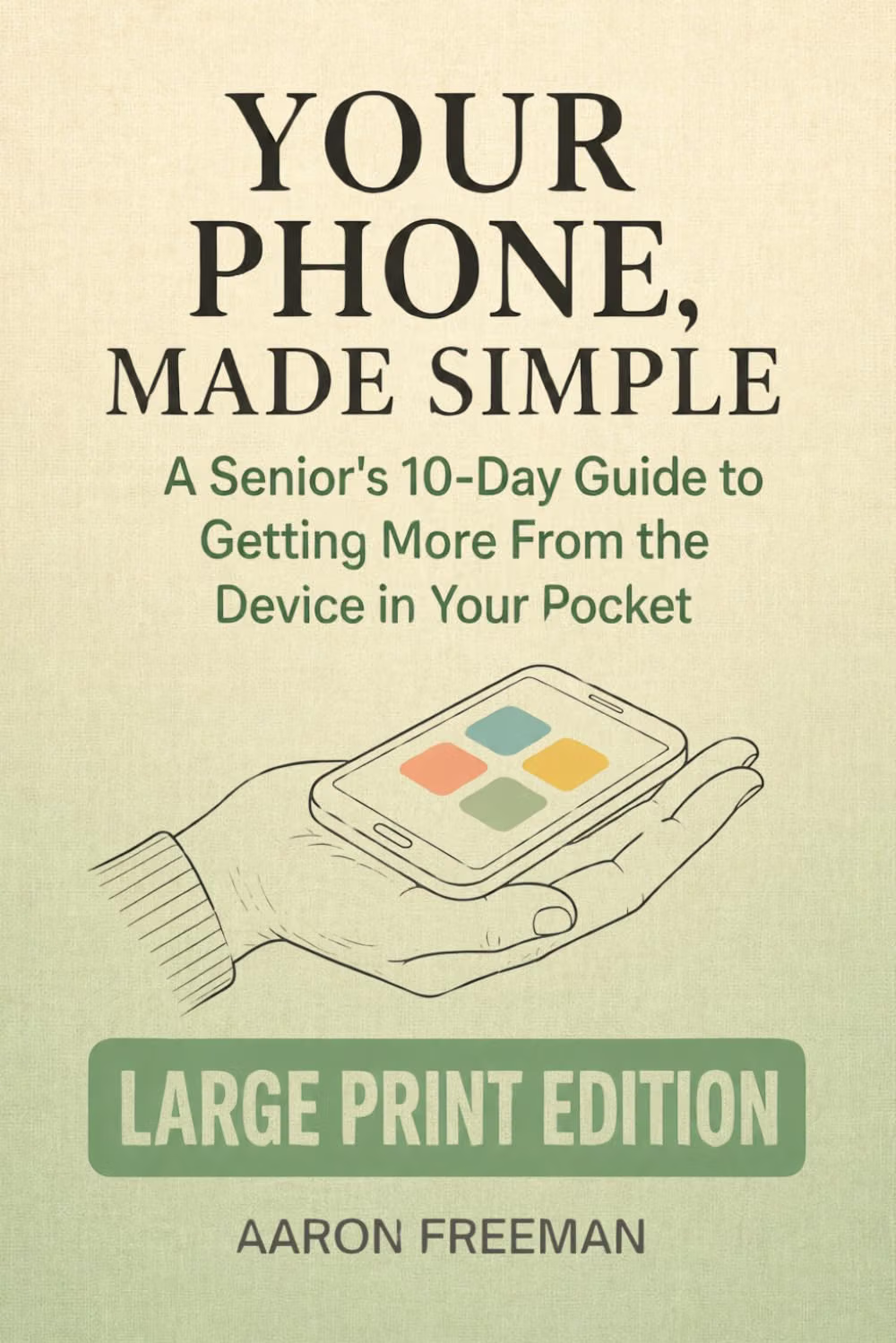
Your Phone, Made Simple: A Senior’s 10-Day Guide to Getting More From the Device in Your Pocket — Large Print Edition takes a structured approach to this problem. The title presents the material as a 10-day guide intended to help seniors learn more about the phone they already have, with a large-print format designed around easier reading.
The 10-day concept is particularly useful as a learning framework. Instead of approaching a smartphone as one enormous subject, the learner can divide the experience into smaller goals.
One day might focus on basic controls. Another can concentrate on contacts and communication. Later sessions can cover photographs, applications, internet connectivity, security, and other useful functions.
The purpose of this kind of approach is not to turn someone into a smartphone expert.
It is to make the device in their pocket more understandable and useful.
Why Smartphone Skills Matter for Seniors
A smartphone can play an important role in staying connected.
Family members may live in different cities or countries. Friends may prefer messaging instead of traditional telephone calls. Organizations increasingly provide information through websites and applications. Maps, appointments, banking services, travel information, and other everyday activities can also involve digital technology.
As a result, knowing how to use a smartphone can help people participate more comfortably in modern life.
But digital independence does not require learning every feature.
A person may only need to master a handful of functions that matter to their daily routine.
For one user, that might mean calls, messages, photographs, and video chats.
For another, it could include navigation, email, calendars, and online services.
The most effective starting point is often identifying what the phone needs to do for the individual.
Key Features of a Senior-Focused Phone Guide
A Structured 10-Day Approach
The most distinctive concept in the title is the 10-day learning format.
A time-based structure can turn a vague goal such as “learn my smartphone” into a series of smaller tasks.
For example, a learning schedule could progress from basic navigation to communication, photography, applications, internet connectivity, and security.
The exact order can be adapted to the user’s needs.
The important principle is consistency.
Instead of trying to understand everything during one afternoon, the learner can focus on one group of functions at a time.
Large Print Format
The book is identified as a Large Print Edition.
Large-print materials can be useful for readers who find smaller text difficult to read.
When learning technology, readability is especially important because the subject already requires concentration.
A reader should not have to struggle with the printed instructions while simultaneously trying to understand an unfamiliar device.
The large-print approach can make the material more approachable for readers who prefer larger text.
Of course, the exact readability of any printed book depends on factors such as individual vision, lighting, and personal preference.
Beginner-Oriented Explanations
Senior technology guides generally benefit from avoiding unnecessary technical terminology.
A beginner may not need to understand the internal architecture of a smartphone.
Instead, practical explanations are more relevant.
What is an app?
What is Wi-Fi?
What does the battery icon mean?
How do I find my photographs?
How do I answer a call?
How do I make the text larger?
These questions represent the kinds of practical issues that can determine whether a person feels comfortable using a device.
Everyday Smartphone Functions
A practical smartphone guide can address functions such as:
- Making telephone calls
- Managing contacts
- Sending messages
- Taking photographs
- Viewing photographs
- Installing applications
- Connecting to Wi-Fi
- Adjusting settings
- Managing notifications
- Using internet services
- Staying connected with family and friends
The value of learning these functions is that they can immediately relate to everyday life.
Day 1: Getting Comfortable With the Phone
The first stage of smartphone learning should focus on basic familiarity.
A beginner should know where the main controls are located and understand the difference between the screen, physical buttons, application icons, and settings.
Important skills include:
- Turning the phone on
- Unlocking the screen
- Locking the phone
- Adjusting the volume
- Charging the battery
- Understanding the home screen
- Opening an application
- Returning to the main screen
These may seem like simple tasks, but they form the foundation for everything else.
A person who feels comfortable navigating the phone is more likely to explore additional features.
Understanding Icons
Smartphones communicate through visual symbols.
A telephone icon generally relates to calling.
A camera icon opens photography functions.
A gear-shaped icon commonly represents settings.
A speech bubble may indicate messaging.
Learning a few common symbols can make the interface less intimidating.
There is no need to memorize every icon.
Start with the ones that appear most frequently.
Day 2: Contacts and Communication
Communication is one of the most important reasons people use smartphones.
Saving contacts makes it easier to call or message people without remembering their telephone numbers.
A useful contact list might include:
- Family members
- Friends
- Doctors or service providers
- Emergency contacts
- Important organizations
Users should review contact information periodically to make sure it remains current.
Making a Call
Practice calling someone familiar.
Open the telephone application, select the contact, and start the call.
During the call, become familiar with:
- Volume controls
- Speaker mode
- Mute
- Ending the call
- Adding another participant when supported
The goal is to make calling feel routine.
Answering Calls
Incoming calls can sometimes appear confusing when different phone models use different buttons or gestures.
Practice answering and ending calls before an important situation occurs.
If an unknown number calls, the user does not necessarily need to answer immediately.
Learning to identify unknown callers and use available spam-protection tools can also be part of basic digital literacy.
Day 3: Text Messages
Text messaging provides a convenient way to communicate without making a telephone call.
A beginner can start with short messages.
The basic process is generally:
- Open the messaging application.
- Select a contact.
- Type a message.
- Review it.
- Send it.
Once this is comfortable, users can learn how to attach photographs, use voice messages where supported, and participate in group conversations.
Avoiding Accidental Messages
Before pressing send, check the recipient.
This is especially important when a message contains private information or a photograph.
Modern messaging applications may also include suggested contacts, group conversations, and sharing options.
Taking a moment to verify the destination can prevent mistakes.
Day 4: Taking and Managing Photographs
Smartphones have made photography part of everyday communication.
A user can photograph family gatherings, travel memories, pets, documents, household projects, or interesting places.
Learning how to use the camera can therefore provide both practical and personal benefits.
Taking a Photograph
Open the camera application.
Frame the subject.
Hold the phone steadily.
Press the shutter button.
Then review the image.
Beginners do not need to learn advanced photography techniques immediately.
The first objective is simply becoming comfortable with taking and finding photographs.
Finding Photographs
After taking pictures, learn where they are stored.
Most phones have a dedicated photo or gallery application.
Practice opening it and locating recently captured images.
This becomes important when the user wants to share a photograph with someone else.
Sharing Photographs
A photograph can often be shared through messaging, email, or other applications.
Before sending an image, confirm the recipient.
It is also worth considering whether the photograph contains private information that should not be shared publicly.
Day 5: Applications
Applications are one of the defining features of smartphones.
An app is essentially software designed to perform a particular function.
There may be applications for:
- Communication
- Banking
- Shopping
- News
- Weather
- Travel
- Entertainment
- Photography
- Health and fitness
- Productivity
- Education
A beginner should not feel obligated to install dozens of applications.
The goal is to identify the ones that solve real problems.
Installing Applications Safely
Use the official application store associated with the phone.
Before installing an application, consider:
- Who created it
- What permissions it requests
- Whether it has a legitimate purpose
- Whether the application is necessary
- Whether it comes from a trustworthy source
Avoid installing applications through suspicious links sent by strangers.
Managing Unused Applications
Over time, phones can accumulate applications that are no longer needed.
Removing unused applications can make the device easier to navigate and may reduce unnecessary notifications.
However, users should be careful not to remove applications they do not recognize without first determining what they do.
Some applications are part of the operating system.
Day 6: Wi-Fi and Internet Access
Understanding Wi-Fi is an important smartphone skill.
Wi-Fi allows compatible devices to connect to a wireless network.
At home, that network is usually provided by a router connected to an internet service.
When a smartphone connects to Wi-Fi, it can use that connection for internet-based services.
Connecting to a Wi-Fi Network
The general process is usually:
- Open Settings.
- Select Wi-Fi or Network settings.
- Choose the appropriate network.
- Enter the password.
- Wait for the connection.
The exact names and appearance of these options vary between devices.
Wi-Fi Versus Mobile Data
These terms are sometimes confusing.
Wi-Fi uses a wireless local network.
Mobile data uses the cellular network provided by a mobile carrier.
A smartphone may switch between these connections depending on settings and availability.
Understanding this distinction can help users troubleshoot internet problems.
What to Do When Wi-Fi Stops Working
If the phone cannot access the internet, check whether other devices connected to the same network are working.
If everything has lost connectivity, the issue may involve the router or internet service.
If only the smartphone has a problem, reconnecting to Wi-Fi or restarting the phone may help.
For persistent problems, consult the device manufacturer’s support information or the internet provider.
Day 7: Video Calls and Staying Connected
Video calls have become an important part of family communication.
They can be particularly valuable when loved ones live far away.
A video call typically requires:
- A compatible device
- Internet connectivity
- A supported video-calling application
- Camera access
- Microphone access
The exact steps depend on the application.
Preparing for a Video Call
Before an important call:
- Charge the phone.
- Check the internet connection.
- Clean the camera lens if necessary.
- Find a quiet place.
- Check the microphone.
- Position the phone securely.
A short practice call with a trusted person can help a beginner become comfortable with the controls.
During the Call
The most important controls are usually:
- Mute
- Camera on/off
- Speaker or audio controls
- End call
There is no need to understand every advanced option.
Day 8: Settings and Personalization
A smartphone should be configured according to the person using it.
Different users have different preferences.
One person may want large text.
Another may want fewer notifications.
Someone else may need louder sound or stronger visual contrast.
Settings can often be adjusted for:
- Text size
- Display brightness
- Sound
- Vibration
- Notifications
- Accessibility
- Privacy
- Battery
- Connectivity
Making Text Easier to Read
If text appears too small, explore the display and accessibility settings.
Many smartphones offer options for increasing text size or magnifying the interface.
This can make menus and messages easier to read.
Reducing Notifications
Too many notifications can create confusion.
Users can usually choose which applications are allowed to send alerts.
A useful approach is to keep important notifications while reducing less important ones.
This makes it easier to notice meaningful messages.
Day 9: Digital Safety
Smartphone education should include security.
Modern phones contain personal information, photographs, contacts, accounts, and access to online services.
Protecting that information is important.
Strong Passwords
Avoid using the same password for every account.
Where possible, use unique passwords and enable multi-factor authentication.
A password manager can help organize credentials.
Recognizing Suspicious Messages
Be cautious when a message:
- Creates unusual urgency
- Requests money
- Requests a password
- Requests a verification code
- Contains a suspicious link
- Claims an account will immediately be closed
- Asks the user to install unfamiliar software
When uncertain, stop.
Contact the person or organization through a trusted method rather than using contact information provided in the suspicious message.
Verification Codes
Never casually share a one-time verification code with someone who contacts you unexpectedly.
These codes can be used to protect online accounts.
If someone asks for one, independently verify the request.
Day 10: Building Independence
The final stage of a 10-day learning program can focus on combining the skills already learned.
A user can create a personal list of the functions they actually need.
For example:
Communication
- Make calls
- Send messages
- Video call family
Information
- Search the internet
- Check weather
- Use maps
Organization
- Calendar
- Reminders
- Notes
Photography
- Take photographs
- Find photographs
- Share photographs
Safety
- Lock the phone
- Use secure passwords
- Recognize suspicious messages
- Keep software updated
Once these skills are comfortable, additional functions can be introduced gradually.
How the Guide Can Be Used Beyond Ten Days
The 10-day structure does not mean learning has to stop after ten days.
Technology is constantly changing.
Applications receive updates.
Phones receive new software.
New services become available.
A useful guide can therefore become a reference tool.
If a user forgets how to perform a task, they can return to the relevant section and practice again.
This is particularly useful for features that are not used every day.
Who May Find This Guide Suitable?
Seniors New to Smartphones
The guide is specifically designed around senior users and a large-print format.
Someone who has recently switched from a traditional mobile phone may find a structured introduction useful.
Older Adults Who Want More Independence
A smartphone can be useful for communication, navigation, information, and organization.
Learning how to perform these tasks independently can reduce the need to ask someone else for assistance with routine functions.
People Who Prefer Printed Instructions
Not everyone learns comfortably from online videos or digital tutorials.
A printed guide provides a physical reference that can remain beside the phone while the learner practices.
Family Members Helping Seniors
A relative can use the guide as a shared learning resource.
Instead of completing every task for the older adult, the family member can encourage the learner to follow the steps independently.
Adults Who Know Basic Phone Functions but Want to Learn More
The guide is not necessarily limited to complete beginners.
Someone who can make calls but rarely uses applications, photographs, Wi-Fi, or video calls may still have useful skills to learn.
Important Things to Consider
Smartphone Instructions Vary
Not all smartphones use the same interface.
Android devices from different manufacturers can look different.
iPhones use a different operating system.
Software versions can also change menus.
Therefore, readers should treat general instructions as guidance and compare them with the specific device they own.
Updates Can Change Interfaces
Applications and operating systems receive updates.
A button shown in one version may appear in another location later.
This is normal.
If an instruction does not match the screen, check the current software version and official support documentation.
Do Not Assume Every Feature Is Available
Certain functions depend on:
- Device model
- Operating system
- Region
- Mobile carrier
- Application
- Account
- Internet connection
A guide cannot guarantee that every feature will operate identically on every phone.
Protect Sensitive Information
Smartphones contain significant amounts of personal information.
Users should be cautious about sharing passwords, banking information, identification documents, authentication codes, and other sensitive data.
This is especially important when communicating through unfamiliar applications or websites.
Back Up Important Photographs
Photographs can be valuable memories.
Users should understand how their phone backs up photographs and whether cloud storage is enabled.
Backup services vary, and users should review their settings and storage arrangements rather than assuming that every photograph is automatically protected.
Making the Smartphone Easier to Navigate
One useful principle for senior technology users is reducing clutter.
A phone with dozens of notifications and applications scattered across multiple screens can be harder to understand.
Consider keeping frequently used applications easily accessible.
For example:
- Phone
- Messages
- Camera
- Photos
- Contacts
- Calendar
- Maps
Less frequently used applications can remain in folders or additional screens.
The goal is not to create a technically sophisticated setup.
It is to create an environment that makes sense to the person using it.
Using the Phone for Everyday Organization
A smartphone can replace several traditional tools.
Digital Calendar
A calendar application can track appointments, birthdays, events, and important dates.
Reminders can reduce the need to remember everything mentally.
Notes
Notes can be used for:
- Shopping lists
- Questions
- Ideas
- Household reminders
- Travel information
- Personal organization
Sensitive information should be protected appropriately.
Maps and Navigation
Navigation applications can provide directions and location information.
Users should verify important travel details because roads, schedules, and services can change.
Weather
Weather applications can help users plan daily activities.
For severe weather, however, people should pay attention to official alerts and local authorities.
Comparison of General Smartphone Learning Categories
Different technology resources are designed for different needs.
| Guide Category | Main Focus | Typical Use |
|---|---|---|
| Smartphone basics | Calls, messages and navigation | First-time smartphone users |
| Device-specific manual | Particular phone model | Detailed device instructions |
| Senior technology guide | Everyday digital skills | Older adults and beginners |
| App guide | Applications and services | Users learning specific apps |
| Internet safety guide | Security and privacy | Safer online activity |
| Digital communication guide | Messaging and video calls | Staying connected |
A senior-focused smartphone guide can be useful when the learner needs a broad introduction rather than instructions for only one application.
A person who already understands smartphone basics but needs detailed assistance with a particular banking application, for example, may need additional specialized instructions.
Learning Technology Without Feeling Rushed
Speed is not the goal.
If a person needs several attempts to understand how to send a photograph, that is completely normal.
Learning should focus on understanding rather than finishing quickly.
A useful method is:
Watch → Try → Repeat → Explain
First, observe how the task works.
Then try it independently.
Repeat the process.
Finally, explain the steps in your own words.
If you can explain how to perform a task, you are more likely to remember it.
Teaching Seniors Smartphone Skills
Family members and friends can play an important role in digital education.
The best assistance often involves allowing the learner to perform the task.
For example, if someone wants to learn how to send a photograph, the helper can explain the steps but allow the senior to hold the phone and complete them.
This takes longer initially.
But it encourages independence.
Another important consideration is language.
Avoid unnecessary technical terminology.
Instead of saying “navigate to the application permissions menu,” explain what the user needs to accomplish.
Simple language can make unfamiliar technology easier to understand.
Frequently Asked Questions
Is Your Phone, Made Simple designed specifically for seniors?
Yes. The title identifies seniors as the intended audience and presents the material as a 10-day guide to getting more from a smartphone.
What does the Large Print Edition mean?
The book is presented as a large-print edition, intended to make the printed material easier to read for people who prefer larger text.
Does someone need previous smartphone experience?
No. The guide is positioned around accessible, practical learning, making it relevant to beginners as well as older adults who want to become more comfortable with additional phone functions.
Can the guide help with making calls?
Basic calling and communication are central smartphone skills and fit naturally within the type of everyday learning covered by the guide.
Can seniors learn how to send photographs?
Yes. Photograph management and sharing are practical smartphone skills that can be learned step by step.
Does the guide cover applications?
Apps are an important part of modern smartphone use, and learning how to understand and manage applications is a useful component of digital literacy.
What is Wi-Fi?
Wi-Fi is a wireless networking technology that allows compatible devices to connect to a local network and, commonly, access the internet through that network.
Is Wi-Fi the same as mobile data?
No. Wi-Fi connects through a local wireless network, while mobile data uses a cellular network provided by a mobile carrier.
Can I learn everything about my smartphone in ten days?
The 10-day concept provides a structured introduction, but smartphones contain many functions. Users may continue learning after the ten-day period and return to the guide as a reference.
What if my phone looks different from the instructions?
This can happen because smartphones use different operating systems, manufacturers customize interfaces, and software updates change menus. Check the specific device model and current software version.
Can I use a printed guide while practicing on my phone?
Yes. One advantage of a physical guide is that it can remain beside the phone while the user follows instructions.
How can I make my phone easier to read?
Explore display and accessibility settings. Depending on the phone, you may be able to increase text size, magnify the screen, adjust contrast, or change other display settings.
How can I reduce unnecessary notifications?
Open the notification settings and review which applications are allowed to send alerts. Keep notifications that matter and reduce those that are distracting.
How can I protect my smartphone?
Use a secure screen lock, keep the operating system updated, use strong account passwords, enable multi-factor authentication where available, and be cautious with suspicious messages and applications.
Should I click links in unexpected text messages?
Unexpected links should be treated cautiously, especially when a message creates urgency or asks for personal information. Verify the sender independently before taking action.
Can smartphones help seniors stay connected?
Yes. Calls, messages, email, photographs, social platforms, and video calls can all provide ways to communicate with family and friends.
Can a smartphone help organize appointments?
Yes. Calendar and reminder applications can help users track appointments and important dates.
Can a smartphone replace a computer?
For some everyday tasks, a smartphone may be sufficient. However, computers can be more suitable for tasks involving large documents, extensive typing, specialized software, or complex file management.
What should I do if I forget how to perform a task?
Return to the relevant instructions and practice the task again. Repetition is a normal part of learning digital skills.
Should I install every app that looks useful?
No. Install applications based on genuine needs and use reputable application stores. Review developer information and permissions before installing.
Can family members help with smartphone setup?
Yes. Family members can assist with configuration, contacts, accessibility, security, and applications. Ideally, the learner should understand the important settings rather than having everything configured without explanation.
Conclusion
A smartphone can be an incredibly useful everyday tool, but usefulness depends on knowing how to operate it with confidence.
For seniors, learning a smartphone does not have to mean mastering hundreds of features.
A much more practical approach is to focus on the functions that genuinely matter.
Start with the basics.
Learn how to unlock the phone, adjust the volume, make a call, and understand the home screen.
Then move to contacts and messages.
Learn how to take and share photographs.
Explore applications.
Understand Wi-Fi.
Practice video calls.
Adjust display and accessibility settings.
Finally, develop good digital safety habits.
Your Phone, Made Simple: A Senior’s 10-Day Guide to Getting More From the Device in Your Pocket — Large Print Edition uses a 10-day concept to organize this type of learning. The senior-focused and large-print format is intended to make the material approachable for readers who prefer straightforward instructions and easier-to-read printed text.
The most important idea is that digital learning does not need to happen quickly.
A person can learn one task today and another tomorrow.
If something is forgotten, it can be practiced again.
If a screen looks different after an update, the user can check current device documentation.
If a new application seems confusing, there is no need to understand every feature immediately.
Technology becomes more manageable when it is broken into familiar tasks.
A smartphone can ultimately become much more than a telephone. It can provide a convenient way to communicate with family, organize appointments, capture memories, access information, navigate unfamiliar places, and participate in the digital world.
At the same time, users should approach technology thoughtfully. Software changes, device compatibility varies, online scams exist, and personal information deserves protection.
The goal is therefore not simply to use more technology.
It is to use the technology that is genuinely useful, understand the basic controls, and develop enough confidence to explore new functions safely.
For older adults who want a structured introduction to everyday smartphone skills, a 10-day learning framework can provide a practical starting point.
Leave a Reply