Smartwatches have evolved from simple digital watches into compact devices capable of supporting communication, organization, fitness tracking, notifications, navigation, and other everyday activities. For someone who is new to wearable technology, however, the number of settings and features available on a modern smartwatch can make the first few days feel complicated.
The Samsung Galaxy Watch 8 is part of Samsung’s Galaxy Watch ecosystem, and getting comfortable with it involves more than simply putting the watch on a wrist. Users may need to pair it with a compatible smartphone, configure accounts and permissions, personalize the display, manage notifications, understand health-related features, and learn how to interact with apps and voice-based tools.
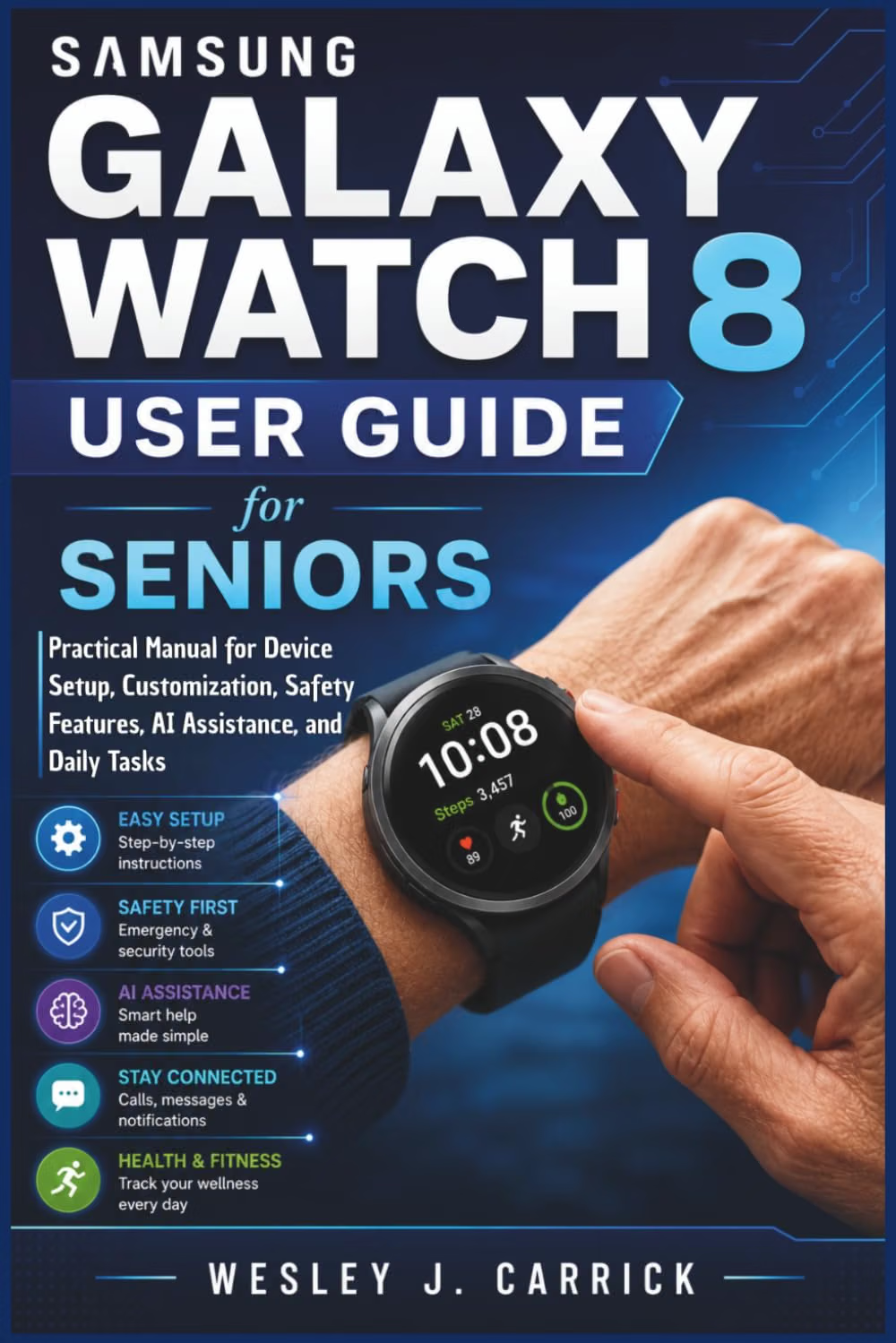
That is the context in which a resource such as Samsung Galaxy Watch 8 User Guide for Seniors: Practical Manual for Device Setup, Customization, Safety Features, AI Assistance, and Daily Tasks can be useful. Rather than assuming that every reader already understands smartwatch terminology, a senior-oriented guide can provide a more approachable starting point for learning the device.
A practical manual is particularly useful when it explains not only what a feature does, but also where it fits into everyday life. A smartwatch can be used to check notifications without reaching for a phone, keep track of appointments, monitor selected activity information, communicate with contacts, customize the watch face, and access supported applications.
The key is learning these capabilities gradually.
Understanding the Samsung Galaxy Watch 8
Before exploring individual features, it helps to understand what a smartwatch actually is.
A Galaxy Watch is a wearable computer designed to work alongside a smartphone and, depending on the model and configuration, provide certain functions independently.
The watch has its own operating system, display, sensors, wireless connectivity, applications, and settings. It can therefore perform some tasks directly from the wrist.
At the same time, many functions depend on a connection with a compatible smartphone, an account, internet access, or specific regional and carrier support.
This distinction is important for beginners.
If a particular function does not appear on the watch, it does not automatically mean the device is defective. The feature may require a paired phone, a software update, a specific account, an enabled permission, or compatibility with the user’s configuration.
A good user guide helps explain these relationships.
Key Features Covered by a Practical User Guide
Device Setup
The first step is getting the smartwatch ready for use.
Setup generally involves charging the watch, turning it on, pairing it with a compatible smartphone, following the setup instructions, and configuring relevant accounts and permissions.
For someone unfamiliar with smartwatches, pairing can seem more complicated than connecting traditional Bluetooth accessories.
A beginner-friendly approach is to complete the setup slowly rather than changing numerous settings at once.
During setup, users should pay attention to permissions and explanations shown on the screen. These may relate to notifications, contacts, location, health information, or other functionality.
It is useful to understand why a permission is being requested before accepting it.
Customizing the Watch Face
The watch face is the first screen most users see.
Depending on the available options, a user can personalize elements such as the visual style, information displayed, and shortcuts.
For seniors, simplicity can be valuable.
A watch face with large, easy-to-read information may be more practical than one containing numerous small elements.
Useful information might include:
- Time
- Date
- Battery status
- Weather
- Activity information
- Calendar information
- Notifications
- Other supported complications
Customization is not merely cosmetic. It can reduce the number of steps needed to reach frequently used information.
Display and Accessibility Settings
Modern wearable devices can include settings intended to make interaction easier.
Depending on the software version and configuration, users may find options related to display visibility, font size, screen behavior, sound, vibration, accessibility, and interaction.
A senior who finds text difficult to read should explore these settings early instead of trying to adapt to a default configuration.
The objective is to make the watch work comfortably for the individual.
Notifications
Notifications are one of the most practical reasons to use a smartwatch.
Instead of constantly checking a smartphone, users can receive selected alerts on their wrist.
These might include messages, calls, calendar reminders, application notifications, and other alerts.
However, receiving every notification can quickly become distracting.
A useful setup involves deciding which notifications actually need to appear on the watch.
For example, someone might want messages and calls but prefer to keep notifications from less important applications on the phone.
This can make the watch feel like a useful assistant rather than a source of constant interruptions.
How the Samsung Galaxy Watch 8 Can Be Used in Daily Life
Staying Connected With Family
A smartwatch can make communication more accessible by bringing certain notifications and communication functions closer to the user.
Depending on the user’s configuration and supported features, the watch can provide access to calls, messages, contacts, and other communication tools.
For seniors who frequently communicate with family members, having important notifications available from the wrist can be convenient.
It can also reduce the need to immediately pick up a smartphone every time an alert arrives.
Managing Appointments
A smartwatch can support organization through calendar-related functions and reminders.
A user might rely on notifications for:
- Doctor or service appointments
- Family events
- Meetings
- Medication reminders
- Birthdays
- Daily routines
- Important tasks
For any health-related reminder, the watch should be considered a scheduling aid rather than a replacement for professional medical advice.
Checking the Time and Date
It sounds obvious, but a smartwatch remains a watch.
One advantage of a digital display is the ability to choose a presentation that makes time and date information easy to read.
A clear watch face can be especially useful for people who prefer larger text and less visual clutter.
Activity Tracking
Galaxy Watch devices include activity and fitness-related capabilities.
Depending on the model, software version, permissions, and region, users may be able to monitor information related to activities, movement, workouts, sleep, and other wellness metrics.
These features can encourage awareness of daily routines.
However, activity measurements should be interpreted as informational estimates rather than medical diagnoses.
If a health measurement is concerning or unusual, the appropriate response is to consult a qualified healthcare professional rather than relying solely on a smartwatch reading.
Exercise and Walking
Walking is one of the simplest ways to use a smartwatch’s activity capabilities.
A user may be able to select an exercise mode, begin an activity, and later review the recorded information.
This can help users observe patterns in their routines.
For beginners, there is no need to activate every available tracking function.
Starting with one familiar activity, such as walking, can be a straightforward way to learn how exercise tracking works.
Understanding Safety Features
Safety is an important subject for any wearable device, especially when it is intended for seniors.
Modern smartwatches can include features designed to assist during certain emergency or unusual situations.
Depending on the specific model, software, region, network connection, and configuration, safety-related functions may include emergency calling, emergency contacts, location sharing, or fall-related features.
Users should carefully configure these features rather than assuming they are automatically active.
Emergency Contacts
Adding appropriate emergency contacts can make a safety feature more useful.
The selected contacts should be people who are likely to respond when necessary.
It is also important to explain to those contacts what the smartwatch may do in an emergency situation.
Emergency Calling
Users should understand how emergency calling works before an emergency occurs.
Emergency functionality can depend on connectivity and regional services.
A smartwatch should not be treated as a universal replacement for a telephone or emergency service.
Users should learn the correct emergency procedure for their location and ensure that their device configuration supports the features they intend to use.
Fall-Related Features
Some smartwatch configurations can detect patterns associated with falls and provide emergency-related options.
Such features can be helpful as an additional safety measure, but they should not be interpreted as guaranteeing detection of every fall.
The watch can potentially miss events or produce an unintended alert.
Users should therefore understand the limitations of automated safety systems.
AI Assistance and Smartwatch Interaction
Artificial intelligence is increasingly becoming part of consumer technology.
For users who are already familiar with conversational AI, AI-assisted functions can make certain interactions more natural.
Instead of navigating multiple menus, a user may be able to use voice interaction or supported AI features for certain tasks.
The exact availability and behavior of AI functions can depend on software version, connected devices, account configuration, language, region, and service support.
This is particularly important for seniors because AI terminology can sometimes create unrealistic expectations.
AI assistance does not mean the watch understands everything perfectly.
It is better to think of AI as a tool that can assist with supported tasks and information rather than as an infallible digital companion.
Asking Simple Questions
Conversational interfaces generally work well with ordinary language.
A user could ask for information, request a reminder, or use a supported voice command.
Clear instructions can reduce misunderstandings.
For example, rather than giving a vague command, the user can specify exactly what they want the device to do.
AI and Privacy
AI features may process information to provide responses or perform tasks.
Users should therefore understand what information they are sharing.
Avoid entering or verbally providing unnecessary sensitive information, including passwords, financial credentials, authentication codes, or confidential personal information.
Privacy settings should be reviewed periodically, particularly after significant software updates.
Learning the Main Controls
A senior-friendly manual can be especially helpful when explaining the basic interaction methods.
Depending on the Galaxy Watch configuration, users may interact through:
- Touching the screen
- Swiping
- Tapping
- Pressing physical buttons
- Voice commands
- Other supported interaction methods
Learning a small number of gestures can make the device much easier to navigate.
For example, a beginner can practice opening the main application screen, returning to the previous screen, viewing notifications, accessing quick settings, and returning to the watch face.
These basic movements form the foundation for almost everything else.
Managing Battery Life
Battery management is an important part of smartwatch ownership.
A user who expects the watch to be available throughout the day should develop a charging routine that fits their schedule.
Battery consumption can vary depending on settings and usage.
Factors that may affect battery life include:
- Display brightness
- Screen timeout
- Connectivity
- GPS use
- Exercise tracking
- Notifications
- Applications
- Health sensors
- Always-on display settings
- Software behavior
If battery life seems shorter than expected, reviewing these settings can help identify potential causes.
Users should also use compatible charging equipment and follow the manufacturer’s safety guidance.
Who May Find This Guide Useful?
Seniors New to Smartwatches
Someone receiving a Galaxy Watch for the first time may benefit from a guide that starts with fundamental concepts rather than assuming previous smartwatch experience.
The setup process, gestures, notifications, applications, and settings can all be introduced gradually.
Adults Who Are Comfortable With Smartphones but New to Wearables
A smartphone user may already understand applications, Wi-Fi, Bluetooth, and notifications.
However, a smartwatch introduces a smaller screen and different interaction methods.
The transition is easier when users understand which smartphone functions can be extended to the wrist and which functions remain dependent on the phone.
Family Members Helping Seniors
A family member may use a guide as a reference while helping a parent or grandparent configure a smartwatch.
Instead of repeatedly explaining the same settings, both people can work through a structured learning process.
Beginners Interested in AI
People who have heard about AI but have not experimented with it may appreciate an introduction that places AI in the context of a familiar device.
The smartwatch can become another way to understand how voice interaction and AI-assisted features fit into everyday technology.
Users Who Want to Personalize Their Device
Customization can make technology more comfortable.
A user who prefers larger information, fewer notifications, simpler screens, or particular shortcuts can spend time adapting the device to their routine.
Important Things to Consider
Compatibility
Not every Galaxy Watch function works identically with every smartphone.
Compatibility can depend on the phone model, operating system, software version, region, carrier, and individual applications.
Before assuming that a particular feature should work, users should verify the current compatibility requirements.
Software Updates
Software updates can change menus and add or modify functionality.
A printed or digital guide may therefore show instructions that differ slightly from the latest interface.
This is normal for technology products.
When instructions do not match the screen, check the current software version and official Samsung support information.
Regional Availability
Some communication, health, AI, and safety features can vary by country or region.
The availability of a feature described in a general guide should not be interpreted as a guarantee that it is available in every market.
Health Information Is Not Medical Diagnosis
Wearable health sensors can provide useful information, but consumer smartwatch measurements have limitations.
Heart-related information, sleep data, activity measurements, and other health metrics should be treated appropriately.
If someone has a medical concern, they should speak with a qualified healthcare professional.
A smartwatch is not a substitute for clinical evaluation.
Connectivity Matters
Some smartwatch functions may require a connection to a smartphone, Wi-Fi, Bluetooth, or a cellular network depending on the specific configuration.
Users should understand which features remain available when the watch is disconnected.
This is especially important when relying on communication or safety functions.
Privacy and Permissions
During setup, users may be asked to grant permissions to applications.
These permissions should be reviewed thoughtfully.
If an application requests access to information that does not seem necessary for its function, the user can investigate why the permission is requested before proceeding.
Privacy settings are not something that should be configured once and forgotten forever.
Reviewing them periodically is a good digital habit.
Making the Watch Easier to Use
The most useful smartwatch configuration is not necessarily the one with the greatest number of active features.
It is the one that fits the user’s routine.
A senior might configure the watch around a small set of priorities:
- Easy-to-read watch face
- Important contacts
- Essential notifications
- Calendar reminders
- Frequently used applications
- Appropriate accessibility settings
- Safety contacts and emergency functions
- A manageable charging routine
Once these fundamentals are comfortable, additional features can be introduced.
This approach avoids turning the initial setup into an overwhelming technical project.
Comparison of General Smartwatch Learning Categories
Different educational resources can serve different purposes.
| Guide Category | Primary Focus | Typical Learning Goal |
|---|---|---|
| Basic smartwatch guide | Core controls and navigation | Learn how to operate a wearable |
| Device-specific manual | Particular model and software | Understand model-specific functions |
| Senior-focused guide | Accessibility and simple explanations | Make technology easier to approach |
| Fitness-focused guide | Activity and exercise functions | Learn workout and activity tracking |
| AI-focused guide | Artificial intelligence and voice tools | Understand AI-assisted interaction |
| General digital literacy guide | Broader technology skills | Build confidence across multiple devices |
A device-specific senior guide can be particularly useful when the learner needs practical instructions rather than general discussions about wearable technology.
At the same time, users who want detailed information about medical sensors, advanced fitness metrics, or specialized applications may need additional resources.
No single guide needs to cover every possible use case.
A Simple Learning Routine for Beginners
A gradual learning plan can make the transition easier.
Day One: Basic Navigation
Learn how to:
- Wake the display
- Read the watch face
- Return to the home screen
- Open notifications
- Adjust basic settings
- Use the physical controls
Do not worry about advanced functions yet.
Day Two: Communication
Practice:
- Viewing messages
- Handling calls where supported
- Finding contacts
- Managing notification settings
Make sure important contacts are easy to access.
Day Three: Personalization
Adjust:
- Watch face
- Display settings
- Notification preferences
- Sound and vibration
- Accessibility options
The goal is to make the device comfortable.
Day Four: Activity Features
Explore one activity function.
Walking is a simple starting point.
Learn how to start and stop tracking and where the resulting information can be viewed.
Day Five: Safety
Review emergency settings and contacts.
Make sure the user understands how the features operate and what their limitations are.
Day Six: AI and Voice Features
Explore supported voice or AI functions.
Ask simple questions and experiment with everyday commands.
Avoid providing sensitive personal information.
Day Seven: Review
Repeat the functions that matter most.
A week of gradual practice can create a much stronger foundation than attempting to learn every feature in one sitting.
Troubleshooting Common Beginner Problems
Technology problems often have simple explanations.
The Watch Is Not Receiving Notifications
Check whether the watch is connected to the phone and whether notifications are enabled for the relevant application.
Also verify that battery-saving or notification settings are not preventing the alert.
The Battery Is Draining Quickly
Review display settings, connectivity, tracking features, and recently installed applications.
A recent software update can also temporarily affect behavior while background processes complete.
A Feature Is Missing
Check compatibility, software version, region, account requirements, and whether the necessary application has been installed.
The Screen Is Difficult to Read
Explore display and accessibility settings.
Increasing text size or adjusting the display can sometimes make a significant difference.
The Watch Is Not Responding Normally
Try basic troubleshooting steps recommended by Samsung, such as checking the connection, restarting the device, and ensuring that the software is current.
If the problem continues, consult official support rather than repeatedly changing unrelated settings.
Frequently Asked Questions
Is the Samsung Galaxy Watch 8 User Guide designed for seniors?
The title specifically identifies seniors and beginners as its intended audience, with a focus on practical device setup, customization, safety features, AI assistance, and daily tasks.
Do I need a smartphone to use the Galaxy Watch 8?
Many smartwatch functions are designed to work with a compatible smartphone, although the exact level of independent functionality depends on the watch configuration and connectivity options.
Is the guide suitable for someone who has never owned a smartwatch?
Yes. A beginner-focused manual can provide a starting point for learning setup, navigation, customization, and everyday functions.
Can the Galaxy Watch 8 be used for communication?
Depending on the configuration and supported services, Galaxy Watch devices can provide communication-related functions such as notifications and calls or messages.
The exact capabilities depend on the watch, phone, connectivity, carrier, and region.
Can seniors customize the watch face?
Yes, supported watch faces can generally be customized. The available choices and customization options can vary with software and applications.
Does the watch provide health information?
Galaxy Watch devices offer various health and wellness-related functions, depending on the model, software, region, and permissions. These measurements should be treated as informational and not as a substitute for professional medical assessment.
Can AI be used on a Galaxy Watch?
AI-related functionality can depend on supported Samsung services, software versions, connected devices, accounts, languages, and regions. Users should verify current availability for their particular configuration.
Is AI always accurate?
No. AI systems can produce incorrect or incomplete information. Important information should be independently verified.
Are emergency features automatically reliable?
Safety features can provide additional assistance, but they should not be treated as a guarantee that every emergency or fall will be detected or successfully communicated.
Users should configure them correctly and understand their limitations.
How can I make the watch easier for an older adult to use?
Start with a simple watch face, reduce unnecessary notifications, configure important contacts, explore accessibility settings, and teach only the functions that are immediately useful.
What should I do if the instructions in the guide look different from my watch?
Check the software version and consult current official Samsung documentation. Interfaces can change after updates.
Should every notification be enabled?
Not necessarily. Enabling only important notifications can make the watch less distracting and easier to manage.
Can a smartwatch replace a medical device?
A consumer smartwatch should not automatically be treated as a replacement for a medical device or professional evaluation. Health-related information should be interpreted within its intended context.
Can family members help configure the watch?
Yes. Family members can assist with setup, contacts, notifications, accessibility settings, and safety features. The user should still understand what information is being shared and what settings are being changed.
Conclusion
A modern smartwatch can provide a wide range of functions from a very small device. For an experienced technology user, learning these features may be relatively straightforward. For someone encountering wearable technology for the first time, however, the combination of setup procedures, gestures, applications, notifications, connectivity, safety options, health information, and AI-assisted features can be a lot to absorb.
Samsung Galaxy Watch 8 User Guide for Seniors: Practical Manual for Device Setup, Customization, Safety Features, AI Assistance, and Daily Tasks approaches the subject from the perspective of seniors and beginners. Its focus on practical setup, customization, safety, AI assistance, and everyday tasks reflects the areas that many new smartwatch users need to understand first.
The most effective way to learn a device like this is gradually.
Start with the watch face and basic controls. Then learn notifications and communication. After that, explore customization, activity features, safety settings, and supported AI functions. There is no need to activate or understand everything immediately.
It is equally important to maintain realistic expectations. Smartwatch features can depend on software versions, compatible phones, connectivity, regional availability, and account settings. Health and safety functions can provide useful support but have limitations, while AI tools can assist with certain tasks without being infallible.
With a patient learning process and sensible configuration, a smartwatch can become a practical part of a daily routine rather than another complicated piece of technology.
Leave a Reply